Generate Shipping Labels with DocAPI
Shipping labels need to be precise. Wrong dimensions? The label won't fit. Blurry barcode? Package gets lost. Most e-commerce platforms rely on carrier APIs for labels, but sometimes you need custom labels for internal logistics, packing slips, or carriers that don't provide an API.
This guide shows you how to generate professional shipping labels with DocAPI.
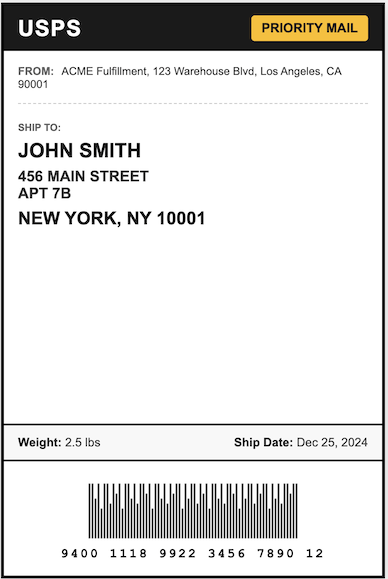
Label Anatomy
A standard shipping label includes:
- Sender address (return address)
- Recipient address (destination)
- Barcode (tracking number)
- Service type (Priority, Express, Ground)
- Weight and dimensions
- Carrier logo (optional)
Basic Label Template
Let's start with a 4x6 inch label—the standard size for most shipping:
const labelHTML = `
<!DOCTYPE html>
<html>
<head>
  <style>
    * { margin: 0; padding: 0; box-sizing: border-box; }
    body {
      font-family: Arial, sans-serif;
      width: 4in;
      height: 6in;
    }
    .label {
      width: 100%;
      height: 100%;
      border: 2px solid #000;
      padding: 12px;
      display: flex;
      flex-direction: column;
    }
    .header {
      display: flex;
      justify-content: space-between;
      align-items: center;
      padding-bottom: 10px;
      border-bottom: 2px solid #000;
      margin-bottom: 10px;
    }
    .service-type {
      font-size: 18px;
      font-weight: bold;
      text-transform: uppercase;
    }
    .tracking {
      font-size: 12px;
      font-family: monospace;
    }
    .addresses {
      flex: 1;
      display: flex;
      flex-direction: column;
    }
    .address-block {
      margin-bottom: 15px;
    }
    .address-label {
      font-size: 10px;
      font-weight: bold;
      text-transform: uppercase;
      color: #666;
      margin-bottom: 4px;
    }
    .address {
      font-size: 12px;
      line-height: 1.4;
    }
    .address.recipient {
      font-size: 16px;
      font-weight: bold;
    }
    .barcode-section {
      text-align: center;
      padding-top: 10px;
      border-top: 2px solid #000;
    }
    .barcode {
      margin: 10px 0;
    }
    .barcode img {
      max-width: 100%;
      height: 60px;
    }
    .tracking-number {
      font-family: monospace;
      font-size: 14px;
      letter-spacing: 2px;
    }
  </style>
</head>
<body>
  <div class="label">
    <div class="header">
      <div class="service-type">Priority Mail</div>
      <div class="tracking">USPS</div>
    </div>

    <div class="addresses">
      <div class="address-block">
        <div class="address-label">From:</div>
        <div class="address">
          ACME Corp<br>
          123 Warehouse Blvd<br>
          Los Angeles, CA 90001
        </div>
      </div>

      <div class="address-block">
        <div class="address-label">Ship To:</div>
        <div class="address recipient">
          JOHN SMITH<br>
          456 MAIN STREET APT 7<br>
          NEW YORK, NY 10001
        </div>
      </div>
    </div>

    <div class="barcode-section">
      <div class="barcode">
        <img src="https://barcodeapi.org/api/128/9400111899223456789012" alt="barcode">
      </div>
      <div class="tracking-number">9400 1118 9922 3456 7890 12</div>
    </div>
  </div>
</body>
</html>
`;
Generating the Label PDF
async function generateShippingLabel(shipment) {
  const html = generateLabelHTML(shipment);

  const response = await fetch("https://api.docapi.co/v1/pdf", {
    method: "POST",
    headers: {
      "x-api-key": process.env.DOCAPI_KEY,
      "Content-Type": "application/json",
    },
    body: JSON.stringify({
      html,
      options: {
        width: "4in",
        height: "6in",
        margin: { top: "0", bottom: "0", left: "0", right: "0" },
        printBackground: true,
      },
    }),
  });

  return await response.arrayBuffer();
}
Reusable Label Generator
Here's a complete function that accepts shipment data:
function generateLabelHTML(shipment) {
  const { from, to, trackingNumber, serviceType, carrier, weight } = shipment;

  // Format tracking number with spaces for readability
  const formattedTracking = trackingNumber.replace(/(.{4})/g, "$1 ").trim();

  // Generate barcode URL (using a free barcode API)
  const barcodeUrl = `https://barcodeapi.org/api/128/${trackingNumber}`;

  return `
    <!DOCTYPE html>
    <html>
    <head>
      <style>
        * { margin: 0; padding: 0; box-sizing: border-box; }
        body {
          font-family: Arial, Helvetica, sans-serif;
          width: 4in;
          height: 6in;
          background: white;
        }
        .label {
          width: 100%;
          height: 100%;
          border: 3px solid #000;
          display: flex;
          flex-direction: column;
        }

        /* Header */
        .header {
          display: flex;
          justify-content: space-between;
          align-items: center;
          padding: 8px 12px;
          background: #000;
          color: white;
        }
        .carrier {
          font-size: 20px;
          font-weight: bold;
        }
        .service {
          font-size: 14px;
          font-weight: bold;
          text-transform: uppercase;
          background: white;
          color: black;
          padding: 4px 8px;
        }

        /* Addresses */
        .addresses {
          flex: 1;
          padding: 12px;
        }
        .from-address {
          font-size: 10px;
          margin-bottom: 15px;
          padding-bottom: 10px;
          border-bottom: 1px dashed #ccc;
        }
        .from-address .label-text {
          font-weight: bold;
          text-transform: uppercase;
        }
        .to-address {
          font-size: 14px;
        }
        .to-address .name {
          font-size: 18px;
          font-weight: bold;
          text-transform: uppercase;
          margin-bottom: 4px;
        }
        .to-address .street {
          font-weight: bold;
          text-transform: uppercase;
        }
        .to-address .city-state {
          font-weight: bold;
          text-transform: uppercase;
          font-size: 16px;
          margin-top: 4px;
        }

        /* Weight/Info */
        .info-bar {
          display: flex;
          justify-content: space-between;
          padding: 8px 12px;
          background: #f0f0f0;
          font-size: 12px;
          border-top: 1px solid #000;
          border-bottom: 1px solid #000;
        }

        /* Barcode */
        .barcode-section {
          padding: 10px;
          text-align: center;
        }
        .barcode img {
          width: 100%;
          height: 50px;
          object-fit: contain;
        }
        .tracking-text {
          font-family: 'Courier New', monospace;
          font-size: 12px;
          letter-spacing: 1px;
          margin-top: 5px;
        }
      </style>
    </head>
    <body>
      <div class="label">
        <div class="header">
          <span class="carrier">${carrier}</span>
          <span class="service">${serviceType}</span>
        </div>

        <div class="addresses">
          <div class="from-address">
            <span class="label-text">From:</span>
            ${from.name}, ${from.street}, ${from.city}, ${from.state} ${
    from.zip
  }
          </div>

          <div class="to-address">
            <div class="name">${to.name}</div>
            <div class="street">${to.street}</div>
            ${to.street2 ? `<div class="street">${to.street2}</div>` : ""}
            <div class="city-state">${to.city}, ${to.state} ${to.zip}</div>
          </div>
        </div>

        <div class="info-bar">
          <span>Weight: ${weight} lbs</span>
          <span>Ship Date: ${new Date().toLocaleDateString()}</span>
        </div>

        <div class="barcode-section">
          <div class="barcode">
            <img src="${barcodeUrl}" alt="Tracking barcode">
          </div>
          <div class="tracking-text">${formattedTracking}</div>
        </div>
      </div>
    </body>
    </html>
  `;
}
Usage Example
const shipment = {
  carrier: "USPS",
  serviceType: "Priority Mail",
  trackingNumber: "9400111899223456789012",
  weight: 2.5,
  from: {
    name: "ACME Fulfillment",
    street: "123 Warehouse Blvd",
    city: "Los Angeles",
    state: "CA",
    zip: "90001",
  },
  to: {
    name: "John Smith",
    street: "456 Main Street",
    street2: "Apt 7B",
    city: "New York",
    state: "NY",
    zip: "10001",
  },
};

const pdfBuffer = await generateShippingLabel(shipment);
Generating Your Own Barcodes
Instead of relying on external barcode APIs, you can generate barcodes as SVG:
import JsBarcode from "jsbarcode";
import { JSDOM } from "jsdom";

function generateBarcodeSVG(data) {
  const dom = new JSDOM("<!DOCTYPE html><html><body></body></html>");
  const document = dom.window.document;
  const svg = document.createElementNS("http://www.w3.org/2000/svg", "svg");

  JsBarcode(svg, data, {
    format: "CODE128",
    width: 2,
    height: 60,
    displayValue: false,
  });

  return svg.outerHTML;
}
Then embed it directly in your HTML:
const barcodeSVG = generateBarcodeSVG(trackingNumber);

const html = `
  <div class="barcode">
    ${barcodeSVG}
  </div>
`;
Batch Label Generation
Generate multiple labels for a batch of orders:
async function generateBatchLabels(shipments) {
  const labels = await Promise.all(
    shipments.map((shipment) => generateShippingLabel(shipment))
  );

  return labels;
}

// Or generate a single PDF with multiple labels
async function generateMultiLabelPDF(shipments) {
  const labelsHTML = shipments.map((s) => generateLabelHTML(s)).join(`
    <div style="page-break-after: always;"></div>
  `);

  const html = `
    <!DOCTYPE html>
    <html>
    <head>
      <style>
        @page { size: 4in 6in; margin: 0; }
        body { margin: 0; padding: 0; }
      </style>
    </head>
    <body>
      ${labelsHTML}
    </body>
    </html>
  `;

  const response = await fetch("https://api.docapi.co/v1/pdf", {
    method: "POST",
    headers: {
      "x-api-key": process.env.DOCAPI_KEY,
      "Content-Type": "application/json",
    },
    body: JSON.stringify({
      html,
      options: {
        width: "4in",
        height: "6in",
        margin: { top: "0", bottom: "0", left: "0", right: "0" },
      },
    }),
  });

  return await response.arrayBuffer();
}
Express.js Endpoint
import express from "express";

const app = express();
app.use(express.json());

app.post("/api/labels", async (req, res) => {
  try {
    const { shipment } = req.body;

    // Validate required fields
    if (!shipment.to || !shipment.trackingNumber) {
      return res.status(400).json({ error: "Missing required fields" });
    }

    const html = generateLabelHTML(shipment);

    const response = await fetch("https://api.docapi.co/v1/pdf", {
      method: "POST",
      headers: {
        "x-api-key": process.env.DOCAPI_KEY,
        "Content-Type": "application/json",
      },
      body: JSON.stringify({
        html,
        options: {
          width: "4in",
          height: "6in",
          margin: { top: "0", bottom: "0", left: "0", right: "0" },
        },
      }),
    });

    if (!response.ok) {
      throw new Error("PDF generation failed");
    }

    const pdfBuffer = await response.arrayBuffer();

    res.setHeader("Content-Type", "application/pdf");
    res.setHeader(
      "Content-Disposition",
      `attachment; filename="label-${shipment.trackingNumber}.pdf"`
    );
    res.send(Buffer.from(pdfBuffer));
  } catch (error) {
    console.error("Label generation error:", error);
    res.status(500).json({ error: "Failed to generate label" });
  }
});
International Labels
International shipments need additional fields:
function generateInternationalLabelHTML(shipment) {
  const { customs } = shipment;

  return `
    <!DOCTYPE html>
    <html>
    <head>
      <style>
        /* ... base styles ... */
        .customs-section {
          border-top: 2px solid #000;
          padding: 10px;
          font-size: 10px;
        }
        .customs-title {
          font-weight: bold;
          margin-bottom: 5px;
        }
        .customs-table {
          width: 100%;
          border-collapse: collapse;
        }
        .customs-table td {
          padding: 2px 4px;
          border: 1px solid #ccc;
        }
      </style>
    </head>
    <body>
      <div class="label">
        <!-- ... header and addresses ... -->

        <div class="customs-section">
          <div class="customs-title">Customs Declaration</div>
          <table class="customs-table">
            <tr>
              <td><strong>Contents:</strong></td>
              <td>${customs.contentType}</td>
            </tr>
            <tr>
              <td><strong>Description:</strong></td>
              <td>${customs.description}</td>
            </tr>
            <tr>
              <td><strong>Value:</strong></td>
              <td>$${customs.value.toFixed(2)} USD</td>
            </tr>
            <tr>
              <td><strong>HS Code:</strong></td>
              <td>${customs.hsCode || "N/A"}</td>
            </tr>
          </table>
        </div>

        <!-- ... barcode section ... -->
      </div>
    </body>
    </html>
  `;
}
Return Labels
Create return labels with prepaid postage:
function generateReturnLabelHTML(order) {
  return generateLabelHTML({
    carrier: "USPS",
    serviceType: "First Class Return",
    trackingNumber: order.returnTrackingNumber,
    weight: order.weight,
    // Swap from/to addresses
    from: order.shippingAddress,
    to: {
      name: "Returns Department",
      street: "123 Returns Center",
      city: "Los Angeles",
      state: "CA",
      zip: "90001",
    },
  });
}
Packing Slips
Often you need a packing slip alongside the shipping label:
function generatePackingSlipHTML(order) {
  const items = order.items
    .map(
      (item) => `
      <tr>
        <td>${item.sku}</td>
        <td>${item.name}</td>
        <td>${item.quantity}</td>
      </tr>
    `
    )
    .join("");

  return `
    <!DOCTYPE html>
    <html>
    <head>
      <style>
        body { font-family: Arial, sans-serif; padding: 20px; }
        h1 { font-size: 24px; margin-bottom: 20px; }
        .order-info { margin-bottom: 20px; }
        table { width: 100%; border-collapse: collapse; }
        th, td { padding: 8px; text-align: left; border-bottom: 1px solid #ddd; }
        th { background: #f5f5f5; }
        .address-section { display: flex; gap: 40px; margin-bottom: 30px; }
        .address { flex: 1; }
        .address h3 { font-size: 14px; margin-bottom: 8px; }
      </style>
    </head>
    <body>
      <h1>Packing Slip</h1>

      <div class="order-info">
        <p><strong>Order:</strong> ${order.orderNumber}</p>
        <p><strong>Date:</strong> ${order.date}</p>
      </div>

      <div class="address-section">
        <div class="address">
          <h3>Ship To:</h3>
          ${order.shippingAddress.name}<br>
          ${order.shippingAddress.street}<br>
          ${order.shippingAddress.city}, ${order.shippingAddress.state} ${order.shippingAddress.zip}
        </div>
        <div class="address">
          <h3>Bill To:</h3>
          ${order.billingAddress.name}<br>
          ${order.billingAddress.street}<br>
          ${order.billingAddress.city}, ${order.billingAddress.state} ${order.billingAddress.zip}
        </div>
      </div>

      <table>
        <thead>
          <tr>
            <th>SKU</th>
            <th>Item</th>
            <th>Qty</th>
          </tr>
        </thead>
        <tbody>
          ${items}
        </tbody>
      </table>

      <p style="margin-top: 40px; font-size: 12px; color: #666;">
        Thank you for your order! Questions? Contact [email protected]
      </p>
    </body>
    </html>
  `;
}
Printing Tips
Thermal Printers
For thermal label printers (Zebra, DYMO):
- Use exact 4x6 dimensions
- Avoid background colors (thermal printers don't support them)
- Use high-contrast black on white
Standard Printers
For standard printers printing on adhesive label sheets:
- Account for label margins on the sheet
- Test alignment before printing batches
Next Steps
- Get your API key at docapi.co
- Start with the basic template and customize for your needs
- Test barcode scanning to ensure labels work with your carrier
- Set up batch generation for high-volume shipping
Need Help?
- Check out the API documentation
- Email us at [email protected]
- We can help design custom label templates